How to Deploy Nextcloud 18.0.1 in Docker Swarm Behind Traefik v2.0
Nextcloud is an industry-leading, open-source, on-premises collaboration platform. Learn how to deploy a secure, self-hosted cloud storage solution in a Docker Swarm cluster.

Nextcloud is an open-source, industry-leading, on-premises collaboration platform. It provides a secure home for all your data, ensuring user files are encrypted during transit and completely under your control.
Today, I am going to show you how to deploy Nextcloud 18.0.1 to our Docker Swarm Cluster using Docker Compose.
The original ownCloud developer, Frank Karlitschek, forked ownCloud to create Nextcloud, which continues to be actively developed by Karlitschek and a dedicated open-source community.
Let’s start with the actual deployment.
Prerequisites
Please ensure you fulfill the following requirements before proceeding with the deployment:
- A Docker Swarm Cluster configured with GlusterFS for persistent storage.
- Traefik v2.0 deployed as the ingress reverse proxy to expose microservices externally.
- A running MariaDB database stack to host the application database.
Introduction to Nextcloud
Nextcloud functions similarly to Dropbox or Google Drive, but with a crucial difference: Nextcloud allows you to host the storage entirely on your own infrastructure.
Nextcloud combines the convenience and ease of use of consumer-grade solutions like Dropbox with the security, privacy, and control businesses require.
Nextcloud synchronizes seamlessly with local client applications running on Windows, macOS, and Linux. It permits granular user and group administration (including integration via OpenID or LDAP), allowing you to define strict read/write permissions for shared content.
Why Choose Nextcloud?
Because Nextcloud is free and open-source, anyone is allowed to install and operate it on their own private servers.
In contrast to proprietary services like Office 365 or Google Workspace, this open architecture guarantees users full ownership and control of their data.
Nextcloud Features
Nextcloud users can generate secure public URLs to share files with external collaborators. It offers comprehensive logging of file-related actions and advanced access control rules. Files are stored in conventional directory structures, which remain fully accessible via WebDAV.
Because Nextcloud is modular, its core functionality can be heavily extended using plugins from the App Store (which currently boasts over 200 extensions). Popular capabilities include:
- Calendar and Contacts management.
- Secure audio and video conferencing via Nextcloud Talk.
- Viewing and editing documents collaboratively via Collabora Online.
- Integrated workflow and account management.
- Connecting external encrypted storage (such as AWS S3, Google Drive, or Dropbox).
- Powerful full-text search.
Key Differentiators
- Putting IT back in control: Your data lives in your data center, on a server managed by you, rather than floating somewhere in a public cloud.
- Security First: Nextcloud features innovative security technologies, from brute force protection to advanced server-side and client-side end-to-end encryption.
- User Focus: Nextcloud is developed in the open. By working closely with a vast developer and user community, the platform adapts rapidly to real-world user needs.
Persisting Nextcloud Data with GlusterFS
Containers deploy quickly and use system resources efficiently, but their filesystems are ephemeral. If a container restarts, local data is lost.
To ensure our uploaded files and configurations survive restarts, we will use GlusterFS. I previously set up a replicated GlusterFS volume to ensure data is mirrored across all nodes in the cluster.
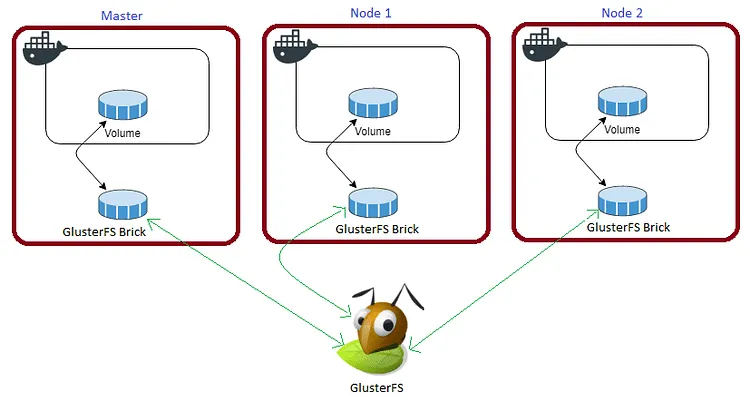
The volume is mounted across all nodes. When a file is written to the
/mntpartition, it is instantly replicated to the other nodes.
If a node fails, the application automatically restarts on another node without losing data. This is the primary advantage of a replicated volume.
For disaster recovery, we need to persist four specific Nextcloud directories: /var/www/html, /var/www/html/custom_apps, /var/www/html/data, and /var/www/html/config.
Create the required persistent folders in the /mnt directory:
cd /mnt
sudo mkdir -p nextcloud
sudo mkdir -p nextapps
sudo mkdir -p nextdata
sudo mkdir -p nextconfig
Watch the video below for a complete guide on setting up a GlusterFS Replicated Volume.
Prepare the Deployment Environment
We will use Docker Compose to define the deployment environment.
Navigate to the /opt directory on your Swarm manager node and create the configuration directory for Nextcloud:
cd /opt
sudo mkdir -p nextcloud
cd nextcloud
sudo touch next.yml
Nextcloud Docker Compose Configuration
Open next.yml using your editor:
sudo nano next.ymlPaste the following Docker Compose configuration. I am using the maindb MariaDB database service that was deployed earlier to our Swarm cluster.
version: "3.7"

services:
  nextcloud:
    image: nextcloud:18.0.1
    depends_on:
      - maindb
    secrets:
      - mysql_root_password
    environment:
      - MYSQL_HOST=maindb:3306
      - MYSQL_DATABASE=nextcloud
      - MYSQL_USER=root
      - MYSQL_ROOT_PASSWORD_FILE=/run/secrets/mysql_root_password
    volumes:
      - /mnt/nextcloud:/var/www/html:cached
      - /mnt/nextapps:/var/www/html/custom_apps:cached
      - /mnt/nextdata:/var/www/html/data:cached
      - /mnt/nextconfig:/var/www/html/config:cached
    networks:
      - proxy
    deploy:
      placement:
        constraints: [node.role == worker]
      replicas: 1
      update_config:
        parallelism: 2
        delay: 10s
      restart_policy:
        condition: on-failure
      labels:
        - "traefik.enable=true"
        - "traefik.docker.network=proxy"
        - "traefik.http.routers.nextcloud.rule=Host(`next.example.com`)"
        - "traefik.http.routers.nextcloud.tls=true"
        - "traefik.http.routers.nextcloud.tls.certresolver=default"
        - "traefik.http.routers.nextcloud.entrypoints=websecure"
        - "traefik.http.services.nextcloud.loadbalancer.server.port=80"

secrets:
  mysql_root_password:
    external: true

volumes:
  nextcloud:
    driver: "local"
  nextapps:
    driver: "local"
  nextdata:
    driver: "local"
  nextconfig:
    driver: "local"

networks:
  proxy:
    external: true
Watch the video below to see a walkthrough of deploying Nextcloud in a Docker Swarm Cluster.
Deploy Nextcloud to Docker Swarm
Deploy the stack to your Swarm using the following command:
docker stack deploy --compose-file next.yml nextIn Docker Swarm, whatever you deploy via compose is called a “stack,” and it contains multiple “services.”
Check the status of the deployment to ensure it scheduled properly:
docker stack ps nextAccess and Install Nextcloud
Open your browser and navigate to next.example.com (ensure you replace example.com with your actual domain). Traefik will automatically route the traffic and secure the connection.
Ensure you have configured a DNS A-Record or CNAME pointing next.example.com to your Swarm ingress load balancer.
You will be greeted with the admin account creation page.
- Create an Admin account by entering your desired username and password.
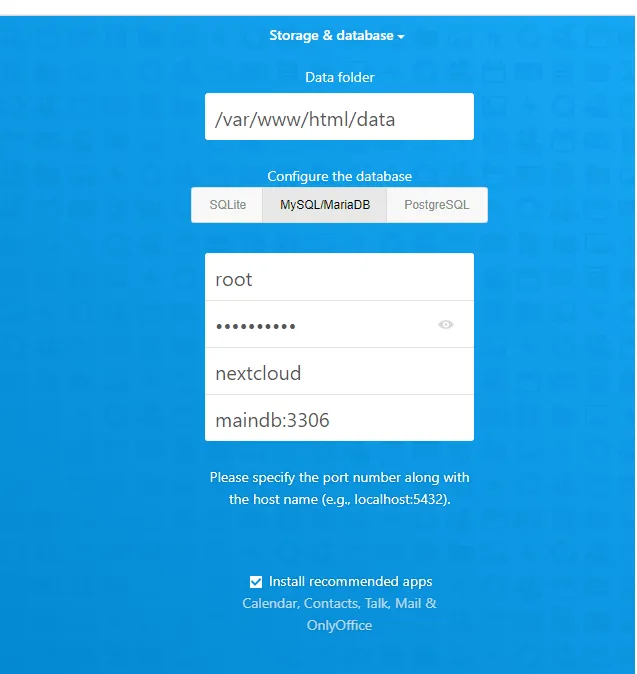
- Click on Storage & database to provide the database details. While SQLite is available for development, we strongly recommend selecting MySQL/MariaDB for production workloads.
- Provide the database username (
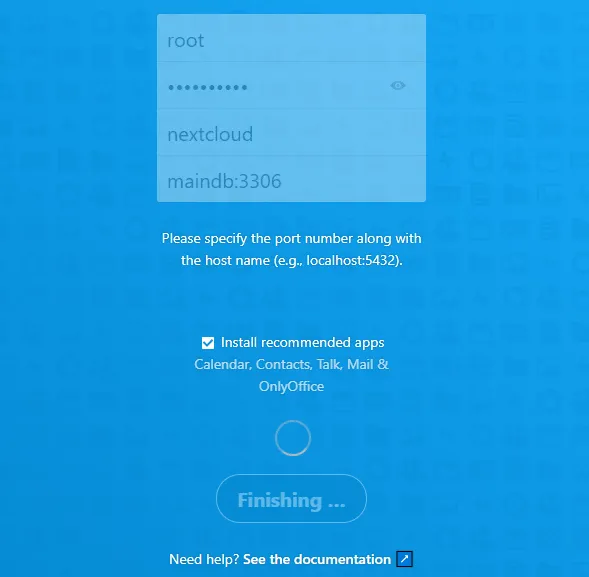
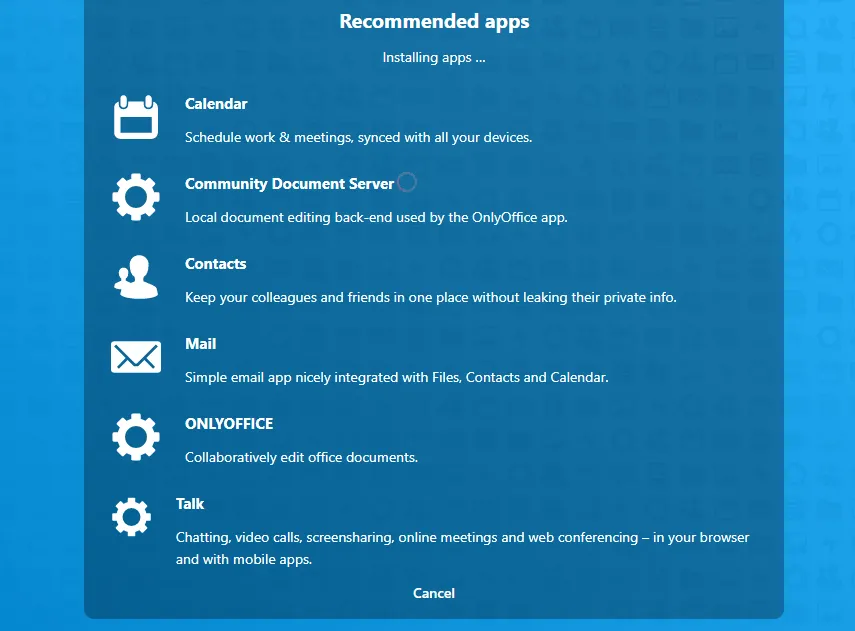
root), the password (the one stored in your Docker secret), the database name (nextcloud), and the database host (maindb:3306). - Check the “Install recommended apps” box if you wish to start with the default suite, and click Finish.
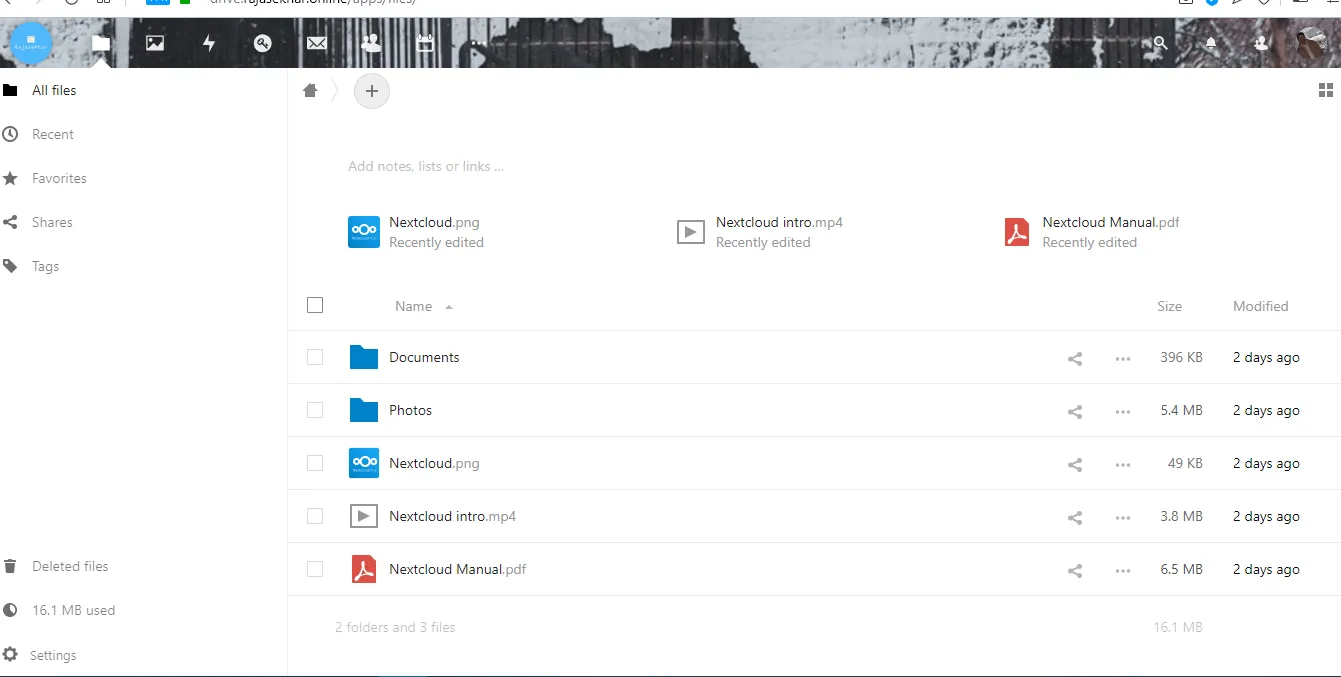
The installation may take up to 10 minutes to complete. Once finished, you will be directed to the Nextcloud welcome screen.
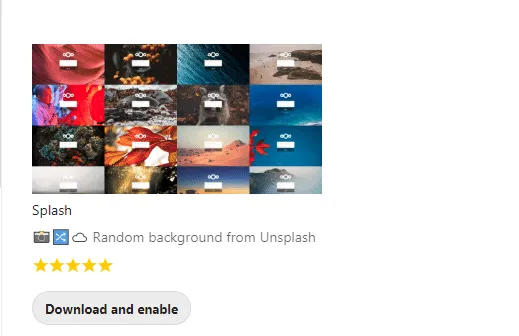
If you want to customize your login screen with random background images, download and enable the Splash app from the built-in app store!
Reference Images from the Deployment:
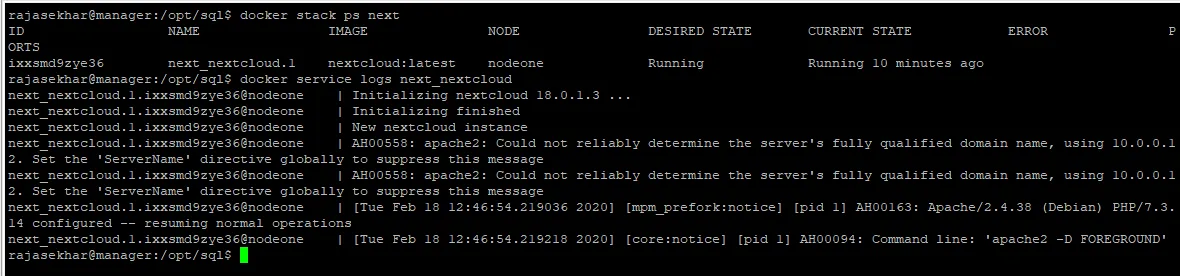
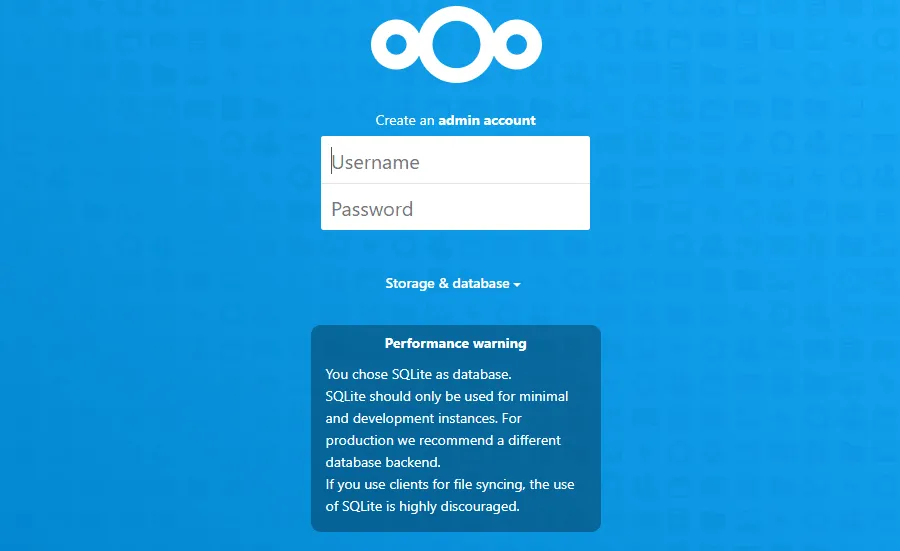
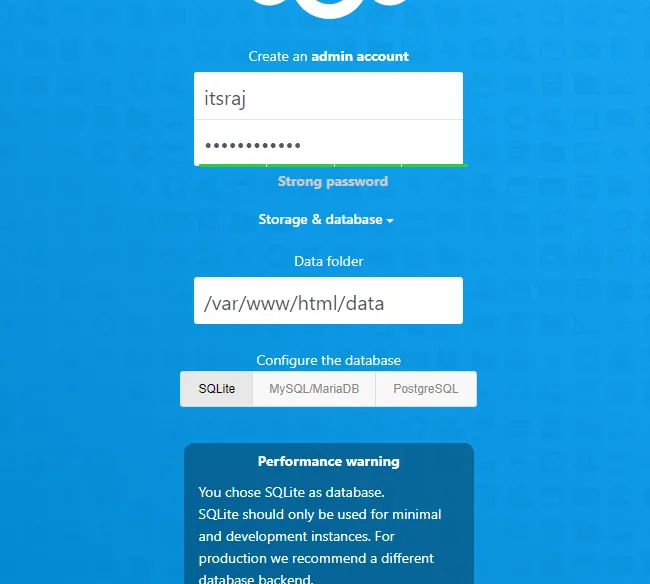
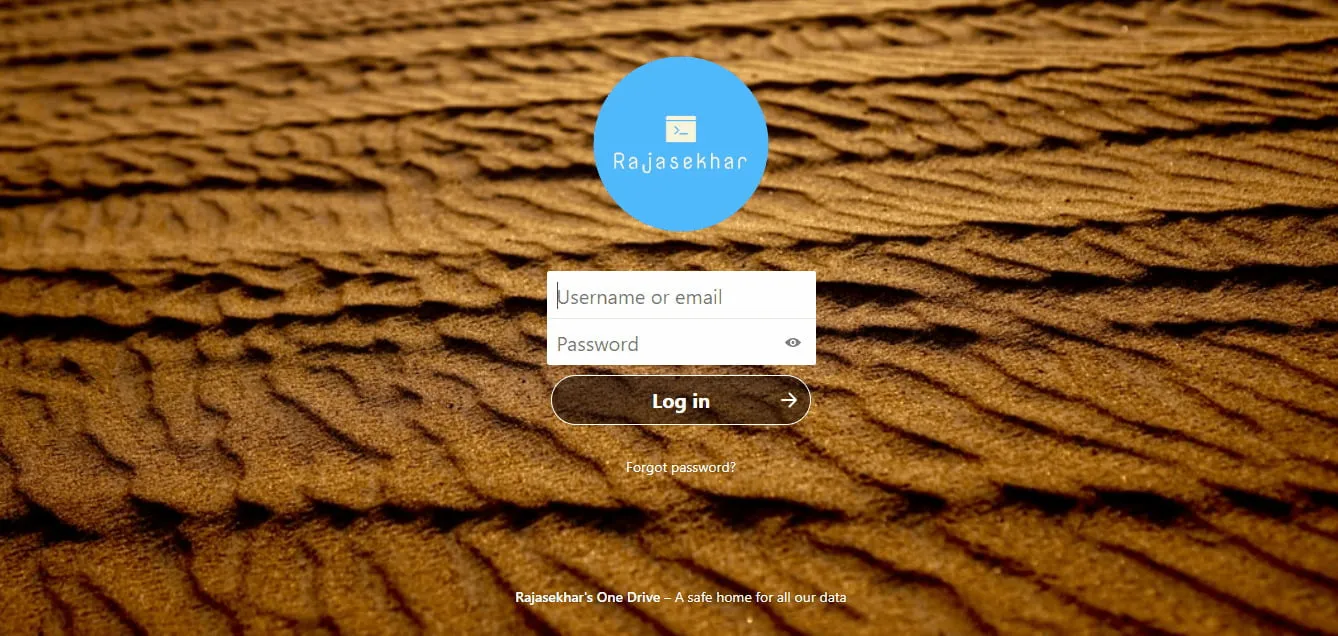
We have successfully deployed a secure, highly available Nextcloud instance.
Stay tuned for more application deployments in upcoming posts!

Continue reading

How to Deploy ProjectSend r1070 in Docker Swarm Behind Traefik v2.0
ProjectSend is a free, secure, and user-friendly file-sharing software. Learn how to self-host this client-oriented tool in a Docker Swarm cluster.

How to Deploy Wekan 3.71 – Open Source Kanban Tool in Docker Swarm Behind Traefik v2.0
Wekan is an open-source kanban board that allows for card-based task and to-do management. Learn how to self-host it in a Docker Swarm cluster.

How to Deploy Rocket.Chat 6.2.6 in Docker Swarm Behind Traefik v2.0
Rocket.Chat is a highly customizable, open-source team collaboration platform designed to replace Slack and Microsoft Teams. Learn how to self-host it in a Docker Swarm cluster.