How to Deploy Rocket.Chat 6.2.6 in Docker Swarm Behind Traefik v2.0
Rocket.Chat is a highly customizable, open-source team collaboration platform designed to replace Slack and Microsoft Teams. Learn how to self-host it in a Docker Swarm cluster.

Rocket.Chat is a wildly popular open-source team collaboration platform capable of replacing email, HipChat, Slack, and Microsoft Teams.
In this post, I am going to show you how to deploy Rocket.Chat 6.2.6 in our Docker Swarm Cluster using Docker Compose, sitting securely behind a Traefik v2.0 reverse proxy. We will be linking this to the MongoDB replica set we deployed in my earlier post.
Prerequisites
Please ensure you fulfill the following requirements before proceeding with the deployment:
- A Docker Swarm Cluster configured with GlusterFS for persistent storage.
- Traefik v2.0 deployed as the ingress reverse proxy to expose microservices externally.
- A running MongoDB stack configured as a replica set to serve as the backend database.
Introduction to Rocket.Chat
Rocket.Chat is a robust web chat server developed in JavaScript using the Meteor full-stack framework.
Rocket.Chat is a free, unlimited, and open-source team collaboration software. Communicate and collaborate with your team, share files, chat in real-time, or switch instantly to video/audio conferencing.
It is an incredible solution for communities and companies wanting to privately host their own chat service, keeping data strictly under their own control. It is also an excellent base for developers looking to build and evolve their own bespoke chat platforms.
Rocket.Chat Features
Rocket.Chat is loaded with features, including live chat, real-time translation, and endless customization. You can take Rocket.Chat anywhere using their web, desktop, and mobile apps.
It provides a safe workspace with username restrictions, admin transparency, and moderator controls to remove bad actors.
Customize your platform to tailor its exact look and feel by adding or removing features, and selecting your own integrations, plugins, and themes.
Because you have complete access to the source code, you can fully customize, extend, or add new functionality to meet your requirements. That’s the beauty of free software—it grants you the freedom to have complete control over your communications.
Standard features include:
- Free audio and video conferencing
- Guest access and Live Chat widgets
- Screen sharing and file sharing
- LDAP Group Sync
- Two-Factor Authentication (2FA)
- End-to-End (E2E) encryption
- Single Sign-On (SSO) and dozens of OAuth providers
Persisting Rocket.Chat Data with GlusterFS
Containers are fast to deploy and make efficient use of system resources. However, their filesystems are ephemeral. If a container restarts, local data is lost.
To overcome this, we use GlusterFS. I previously set up a replicated GlusterFS volume to ensure data is mirrored across all nodes in the cluster.
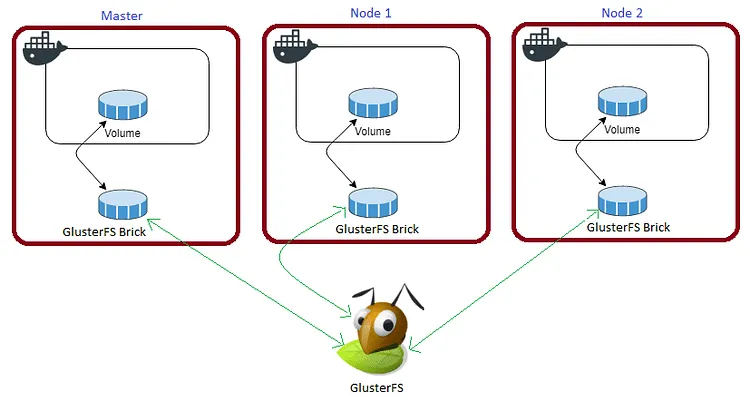
The volume is mounted across all nodes. When data is written to the
/mntpartition, it is instantly replicated.
If any node fails, the application automatically restarts on another node without losing data.
For Rocket.Chat, we need to persist the /app/uploads folder so user avatars and shared files survive container restarts.
Create a persistent folder in the /mnt directory:
cd /mnt
sudo mkdir -p rocketchatuploads
Watch the video below for a complete guide on setting up a GlusterFS Replicated Volume.
Prepare the Deployment Environment
We will use Docker Compose to define the deployment environment.
Navigate to the /opt directory on your Swarm manager node and create the configuration directory for Rocket.Chat:
cd /opt
sudo mkdir -p rock
cd rock
sudo touch rock.yml
Before proceeding, let’s create the Docker Secret that will hold our default admin password securely:
echo "your_secure_admin_password" | docker secret create rock_passwordRocket.Chat Docker Compose Configuration
Open rock.yml using your editor:
sudo nano rock.ymlPaste the following Docker Compose configuration. I am utilizing the previously deployed MongoDB stack as the backend database.
version: "3.7"

services:
  rocketchat:
    image: rocketchat/rocket.chat:latest
    volumes:
      - /mnt/rocketchatuploads:/app/uploads
    depends_on:
      - mongo
    environment:
      - PORT=3000
      - ROOT_URL=[https://team.example.com](https://team.example.com)
      - MONGO_URL=mongodb://mongo/rocketchat
      - MONGO_OPLOG_URL=mongodb://mongo/local
      - Accounts_UseDNSDomainCheck=False
      - ADMIN_USERNAME=admin
      - ADMIN_PASS_FILE=/run/secrets/rock_password
      - ADMIN_EMAIL=user@example.com
    secrets:
      - rock_password
    networks:
      - proxy
    ports:
      - "3000:3000"
    deploy:
      placement:
        constraints: [node.role == worker]
      replicas: 1
      update_config:
        parallelism: 2
        delay: 10s
      restart_policy:
        condition: on-failure
      labels:
        - "traefik.enable=true"
        - "traefik.docker.network=proxy"
        - "traefik.http.routers.rocketchat.rule=Host(`team.example.com`)"
        - "traefik.http.routers.rocketchat.tls=true"
        - "traefik.http.routers.rocketchat.tls.certresolver=default"
        - "traefik.http.routers.rocketchat.entrypoints=websecure"
        - "traefik.http.services.rocketchat.loadbalancer.server.port=3000"

secrets:
  rock_password:
    external: true

volumes:
  rocketchatuploads:
    driver: "local"

networks:
  proxy:
    external: true
I attached this service to the
proxyDocker overlay network so it can be routed securely by the Traefik load balancer. Traefik automatically provisions the Let’s Encrypt SSL certificate based on the labels provided.
Deploy Rocket.Chat to Docker Swarm
Deploy the stack to your Swarm using the following command:
docker stack deploy --compose-file rock.yml rockIn Docker Swarm, whatever you deploy via compose is called a “stack,” and it contains multiple “services.”
Check the status of the deployment to ensure it scheduled properly:
docker stack ps rock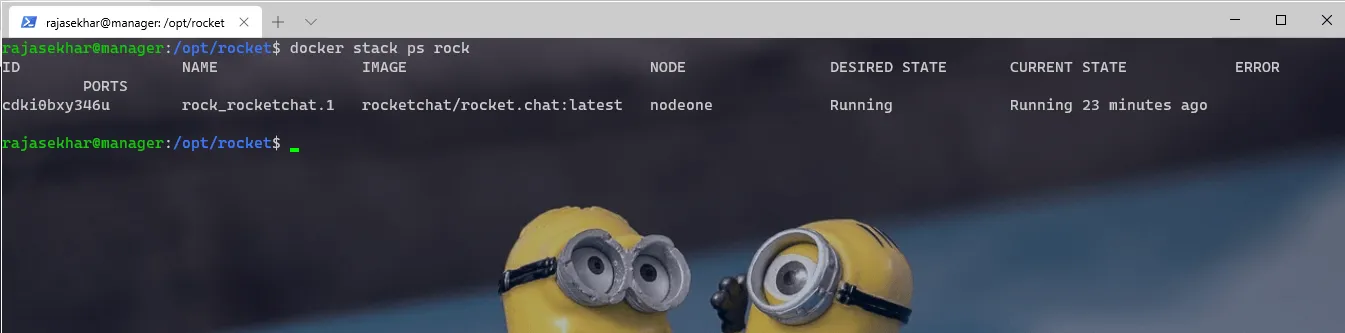
Check the container logs to monitor the initialization process (this can take a minute or two on the first boot as it sets up the MongoDB schema):
docker service logs rock_rocketchat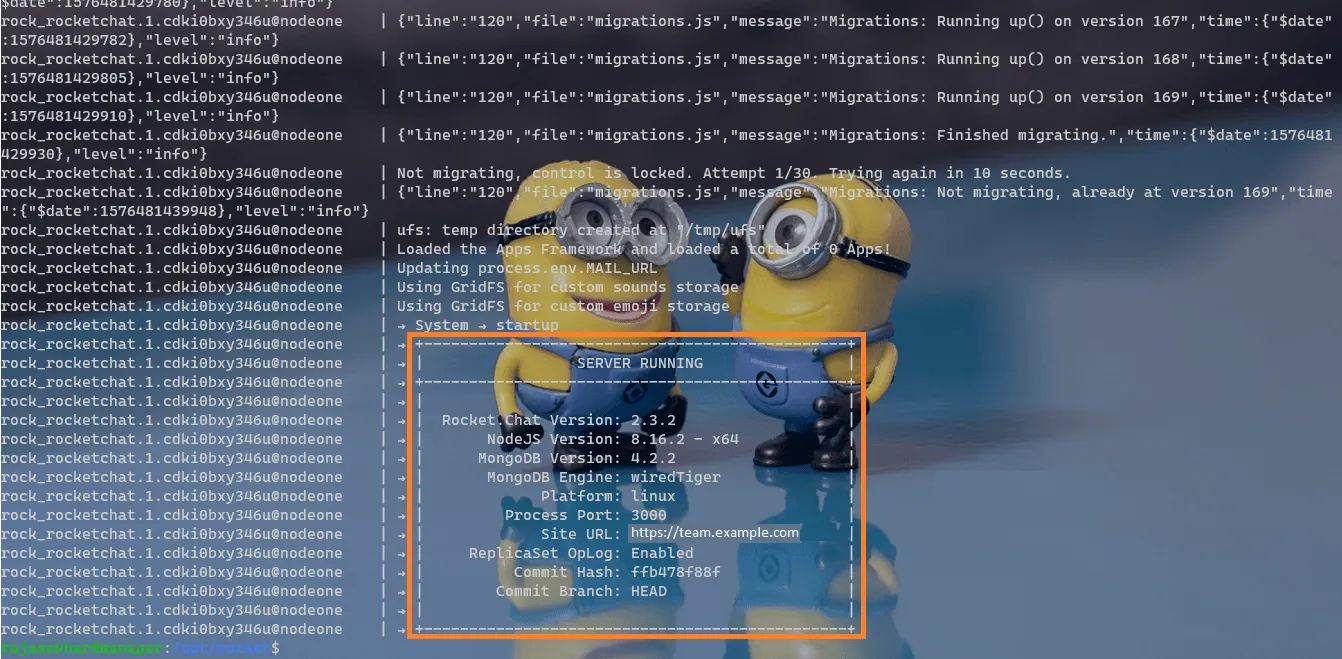
Access and Configure Rocket.Chat
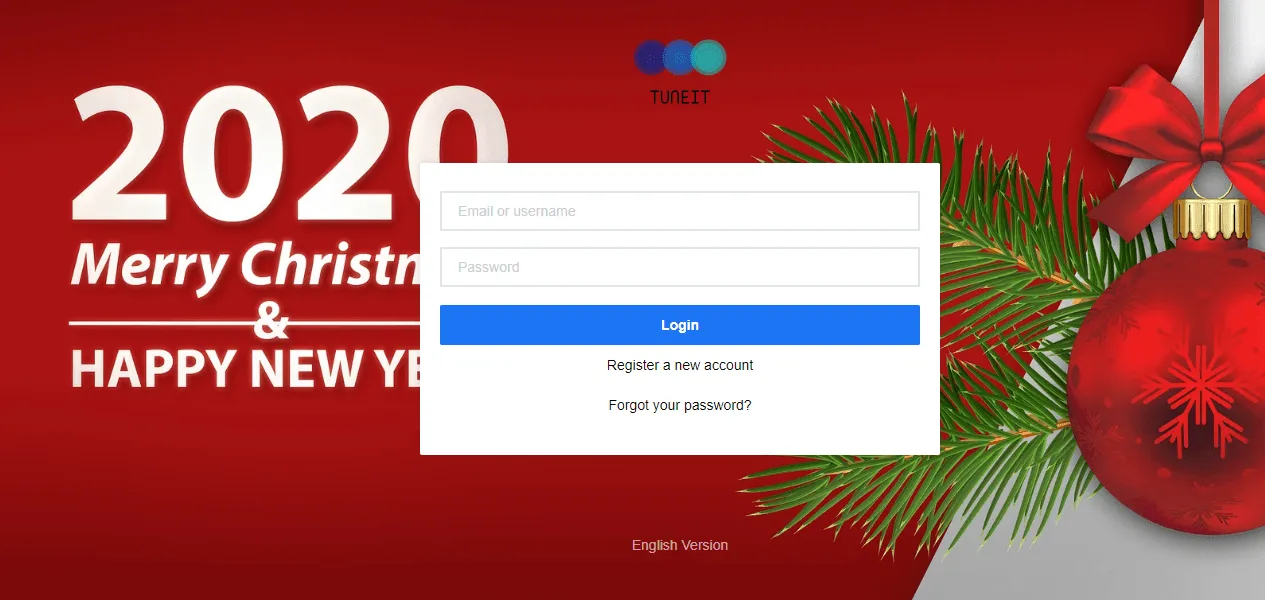
Open your browser and navigate to team.example.com. Traefik will automatically redirect you securely to https://team.example.com/home (ensure you replace example.com with your actual domain).
Ensure you have configured a DNS A-Record or CNAME pointing team.example.com to your Swarm ingress load balancer.
Setup Wizard:
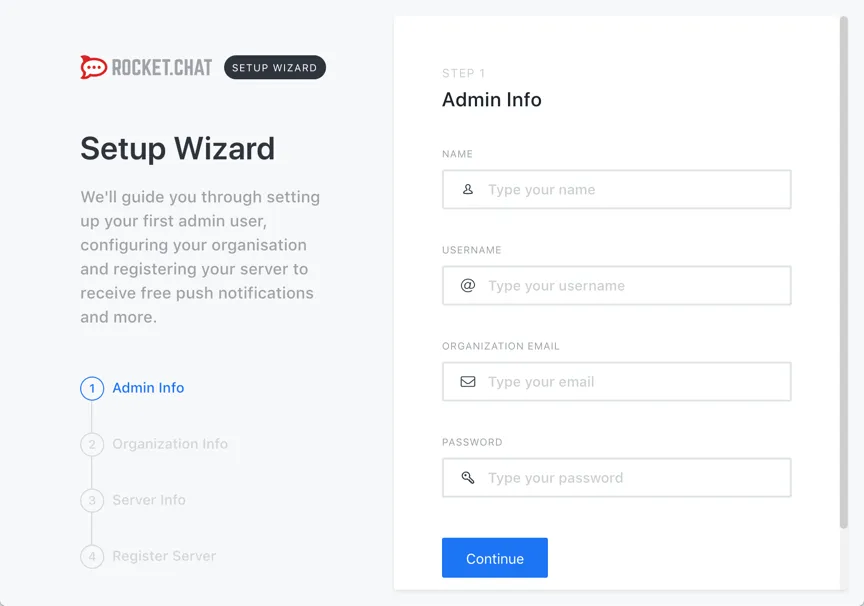
You will be greeted by the setup wizard.
- Fill in your Name, Username (admin), Email address, and Password. Click Continue.
- Provide your organization’s information and click Continue.
- Provide your server details (Site Name, Language, Server Type). Click Continue.
- In the final step, you will be asked if you want to keep your server standalone or register it with the Rocket.Chat cloud. Keep the instance standalone for now.
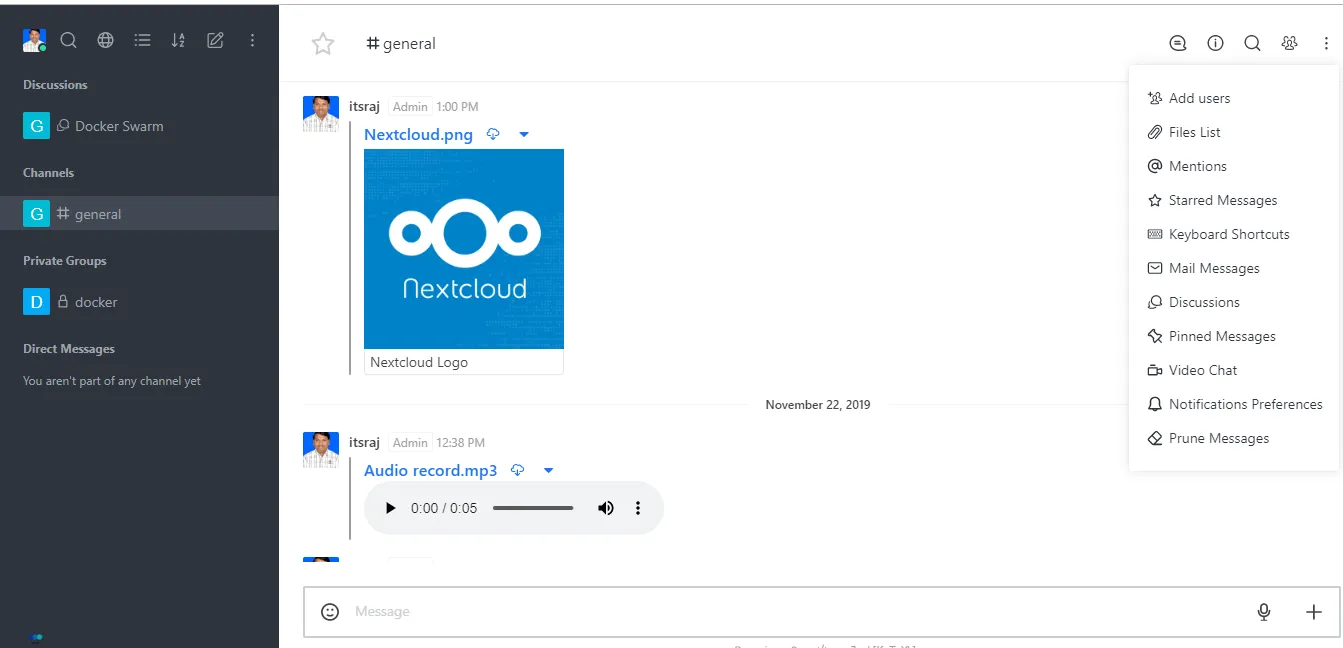
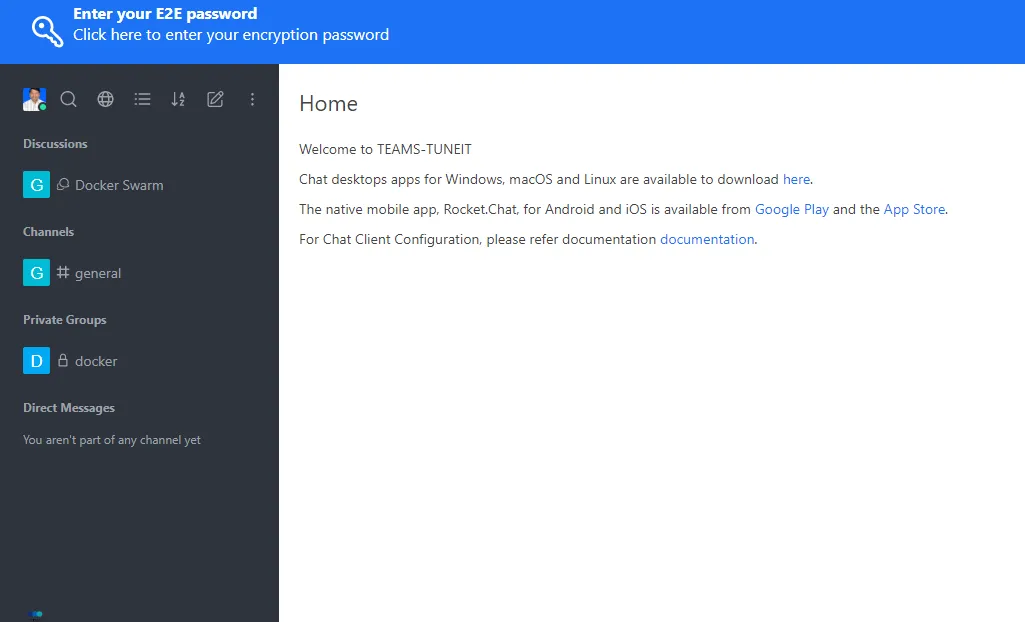
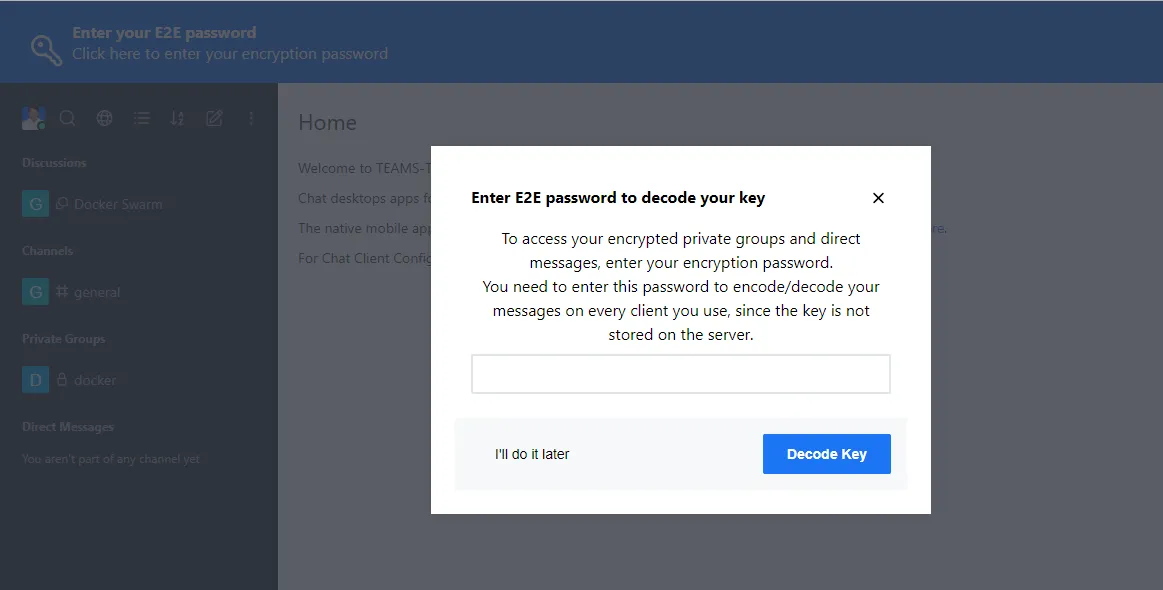
Once completed, you will enter the #general channel as the very first user!
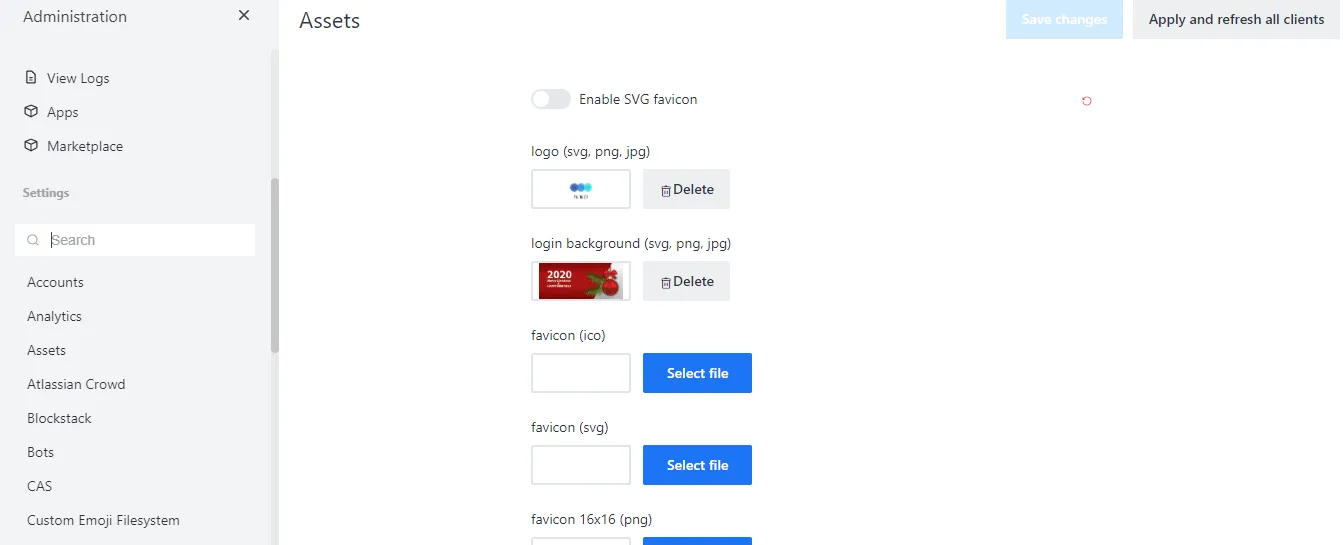
Reference Images from the Deployment:
Customization and Migration
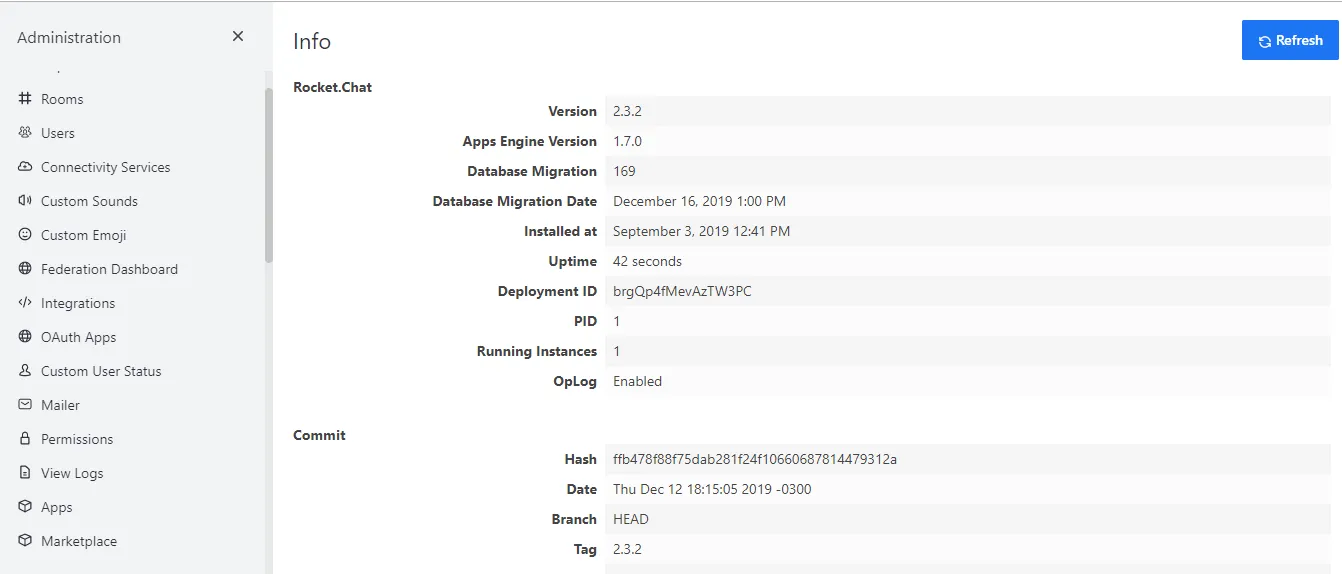
You can fully customize the login screen and the overall UI of your Rocket.Chat instance by navigating to the Assets option in the Administration panel.
Rocket.Chat is trusted by massive innovators such as Aragon, Brave, Hyperledger, and more. If you want to migrate from other platforms, there are plenty of robust tools available:
- Migrating from Slack: Do so easily with the Slack Importer and Slack Bridge.
- Migrating from Atlassian: Use the HipChat Importer.
We have successfully deployed a secure, highly available Rocket.Chat instance to securely connect our teams!
Stay tuned for our Wekan (Open Source Kanban) deployment in the next post. Let me know your feedback or thoughts by commenting below!

Continue reading

How to Deploy ProjectSend r1070 in Docker Swarm Behind Traefik v2.0
ProjectSend is a free, secure, and user-friendly file-sharing software. Learn how to self-host this client-oriented tool in a Docker Swarm cluster.

How to Deploy Nextcloud 18.0.1 in Docker Swarm Behind Traefik v2.0
Nextcloud is an industry-leading, open-source, on-premises collaboration platform. Learn how to deploy a secure, self-hosted cloud storage solution in a Docker Swarm cluster.

How to Deploy Wekan 3.71 – Open Source Kanban Tool in Docker Swarm Behind Traefik v2.0
Wekan is an open-source kanban board that allows for card-based task and to-do management. Learn how to self-host it in a Docker Swarm cluster.