How to Deploy Highly Available WordPress in Docker Swarm Behind Caddy v2.3
Caddy's reverse_proxy is capable of serving any FastCGI application, making it perfectly suited for deploying highly available WordPress using PHP-FPM.
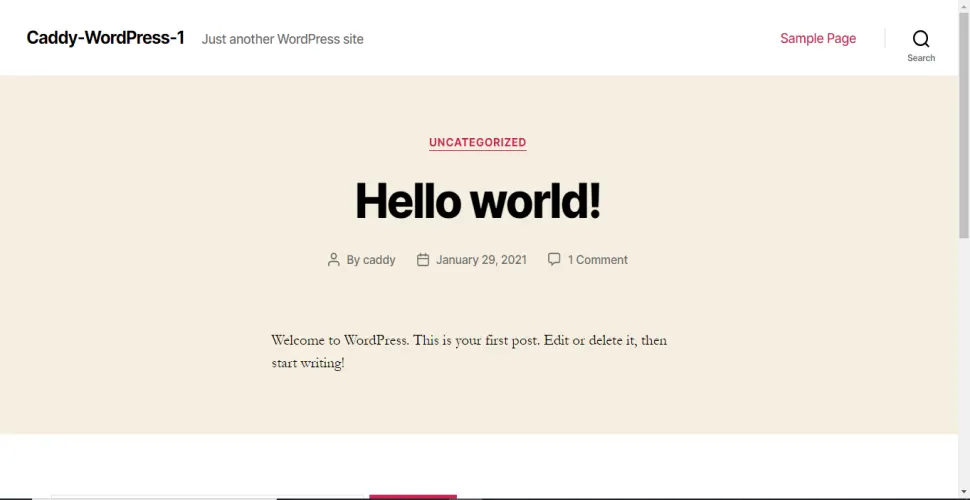
Caddy’s reverse_proxy is capable of serving any FastCGI application, making it an excellent choice for PHP apps like wordpress:php7.4-fpm-alpine. Caddy effortlessly proxies requests to a PHP FastCGI server such as PHP-FPM.
In this post, I will show you how to deploy a highly available WordPress instance in a Docker Swarm Cluster using Docker Compose, sitting securely behind a Caddy web server. Previously, I demonstrated how to deploy WordPress behind Traefik, but Caddy offers a much simpler configuration for PHP environments.
Prerequisites
Ensure you fulfill the following requirements before proceeding with the deployment:
- A Docker Swarm Cluster configured with GlusterFS for persistent storage.
- Caddy deployed as an ingress reverse proxy to expose microservices externally.
- A running MariaDB database stack to host the application databases.
Introduction to WordPress
WordPress is open-source software you can use to create a beautiful website, blog, or app.
WordPress is used by more than 60 million websites, powering over 33% of the top 10 million sites on the web. It is undeniably the most popular Content Management System (CMS) in the world.
Built on PHP and MySQL, WordPress features a robust plugin architecture and a highly customizable template system (Themes). While originally created for blogging, it has evolved to support media galleries, membership sites, learning management systems (LMS), and e-commerce stores.
WordPress Features
WordPress combines simplicity for users and publishers with under-the-hood complexity for developers. This makes it incredibly flexible while remaining easy to use.
There are thousands of plugins that extend what WordPress does, meaning its actual functionality is nearly limitless. Best of all, we are free to use, modify, or extend the code for commercial projects without licensing fees.
Here are some of the features that make WordPress an enterprise standard:
- Flexibility and Extensibility
- Simplicity and Ease of Use
- Responsive out-of-the-box Themes
- High Performance when properly cached
- Manage on the Go via Mobile Apps
- High Security with active community patching
Persisting WordPress Data with GlusterFS
Containers are fast to deploy and make efficient use of system resources. However, their filesystems are ephemeral. If a container restarts, local data is lost.
To ensure our media uploads, themes, and plugins survive restarts, we will use GlusterFS. I previously set up a replicated GlusterFS volume to ensure data is mirrored across all nodes in the cluster.
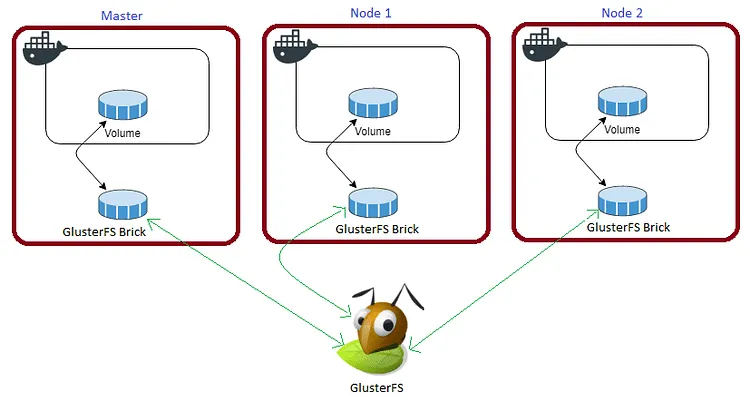
The volume is mounted across all nodes. When data is written to the
/mntpartition, it is instantly replicated to the other nodes in the cluster.
If any node fails, the application automatically restarts on another node without losing data.
For WordPress, we need to map the container’s /var/www/html volume to our persistent storage.
Create a folder named wordpress-caddy in the /mnt directory:
cd /mnt
sudo mkdir -p wordpress-caddy
Watch the video below for a complete guide on setting up a GlusterFS Replicated Volume.
Prepare the Deployment Environment
We will use Docker Compose to define our deployment environment.
Navigate to the /opt directory on your Swarm manager node and create the configuration directory for WordPress:
cd /opt
sudo mkdir -p wordpress
cd wordpress
sudo touch wordpress.yml
Understanding Caddy’s PHP FastCGI Directive
Caddy’s reverse proxy is fully capable of serving FastCGI applications. The php_fastcgi directive is a convenient shorthand that proxies requests directly to a PHP FastCGI server such as PHP-FPM, automatically handling index routing and path splitting.
FPM (FastCGI Process Manager) is an alternative PHP FastCGI implementation featuring advanced process management, graceful restarts, and stdout/stderr logging—making it highly useful for heavy-loaded sites.
I am going to utilize Caddy’s php_fastcgi directive to deploy WordPress using the highly optimized wordpress:php7.4-fpm-alpine Docker container.
Caddyfile Configuration for WordPress
The Caddyfile is a highly readable configuration format for the Caddy web server.
Caddyfile is easy to write, easy to understand, and expressive enough for almost all use cases.
Here is the production-ready Caddyfile block required to expose WordPress securely alongside PHP-FPM. Learn more about writing Caddyfiles here.
{
    email you@example.com
    cert_issuer acme
}

wordpress.example.com {
    log {
        output file /var/log/caddy/wordpress.log {
            roll_size 20mb
            roll_keep 2
            roll_keep_for 6h
        }
        format console
        level error
    }

    # Block access to hidden files and vulnerable endpoints
    @disallowed {
        path /xmlrpc.php
        path *.sql
        path /wp-content/uploads/*.php
    }
    rewrite @disallowed '/index.php'

    root * /var/www/html
    php_fastcgi wordpress:9000
    file_server
    encode gzip zstd
}
Full Stack Deployment (Combined Docker Compose)
Here is the combined docker-compose.yml file deploying both Caddy and the WordPress FPM container. It utilizes Docker Secrets to securely pass the database credentials to the WordPress instance.
version: "3.7"

services:
  caddy:
    image: tuneitme/caddy
    ports:
      - "80:80"
      - "443:443"
    networks:
      - caddy
    volumes:
      - ./Caddyfile:/etc/caddy/Caddyfile
      - /mnt/caddydata:/data
      - /mnt/caddyconfig:/config
      - /mnt/caddylogs:/var/log/caddy
      - /mnt/wordpress-caddy:/var/www/html
    deploy:
      placement:
        constraints:
          - node.role == manager
      replicas: 1
      update_config:
        parallelism: 2
        delay: 10s
      restart_policy:
        condition: on-failure

  wordpress:
    image: wordpress:php7.4-fpm-alpine
    depends_on:
      - maindb
    volumes:
      - /mnt/wordpress-caddy:/var/www/html
    secrets:
      - wordpress_db_host
      - wordpress_db_user
      - wordpress_db_name
      - mysql_db_password
    environment:
      - WORDPRESS_DB_HOST_FILE=/run/secrets/wordpress_db_host
      - WORDPRESS_DB_USER_FILE=/run/secrets/wordpress_db_user
      - WORDPRESS_DB_NAME_FILE=/run/secrets/wordpress_db_name
      - WORDPRESS_DB_PASSWORD_FILE=/run/secrets/mysql_db_password
    networks:
      - caddy
    ports:
      - "9000:9000"
    deploy:
      placement:
        constraints: [node.role == worker]
      replicas: 1
      update_config:
        parallelism: 2
        delay: 10s
      restart_policy:
        condition: on-failure

secrets:
  wordpress_db_host:
    file: ./wordpress_db_host.txt
  wordpress_db_user:
    file: ./wordpress_db_user.txt
  wordpress_db_name:
    file: ./wordpress_db_name.txt
  mysql_db_password:
    file: ./mysql_db_password.txt

volumes:
  caddydata:
    driver: "local"
  caddyconfig:
    driver: "local"
  caddylogs:
    driver: "local"
  wordpress-caddy:
    driver: "local"

networks:
  caddy:
    external: true
Ensure you have created the .txt files containing your database secrets in the same directory as your docker-compose.yml file before deploying.
Deploy WordPress to Docker Swarm
Deploy the stack to your Swarm using the following command:
docker stack deploy --compose-file wordpress.yml wpIn Docker Swarm, whatever you deploy via compose is called a “stack,” and it contains multiple “services” as defined in your file.
Access and Install WordPress
Open your browser and navigate to wordpress.example.com. It will automatically redirect securely to https://wordpress.example.com/wp-admin/install.php (ensure you replace example.com with your actual domain).
Ensure you have configured a DNS A-Record or CNAME pointing wordpress.example.com to your Swarm ingress load balancer.
Reference Images from the Deployment:
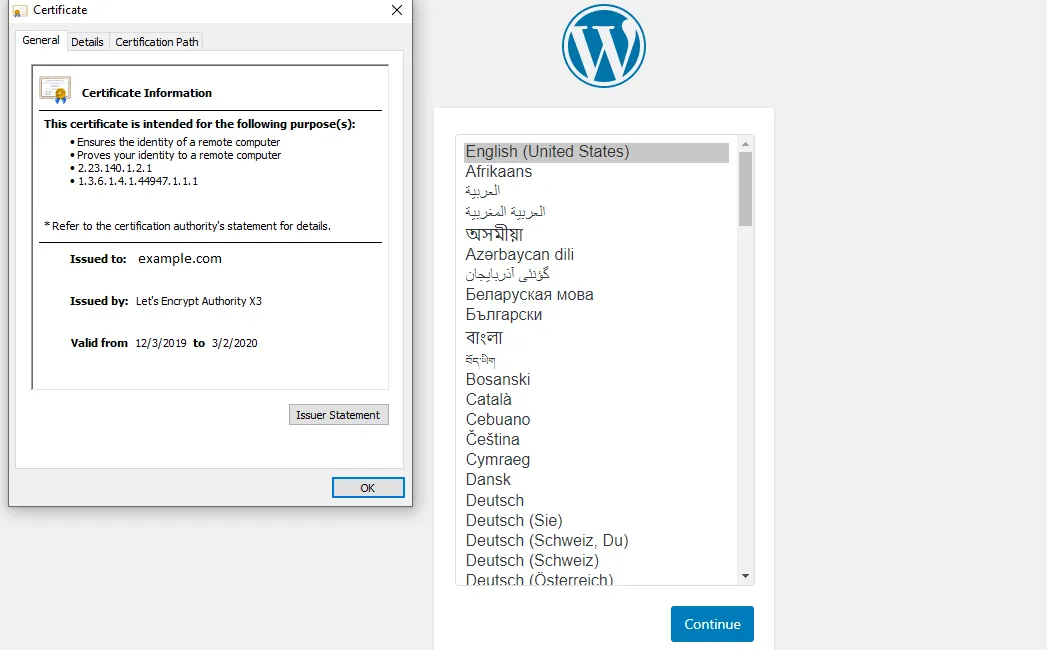
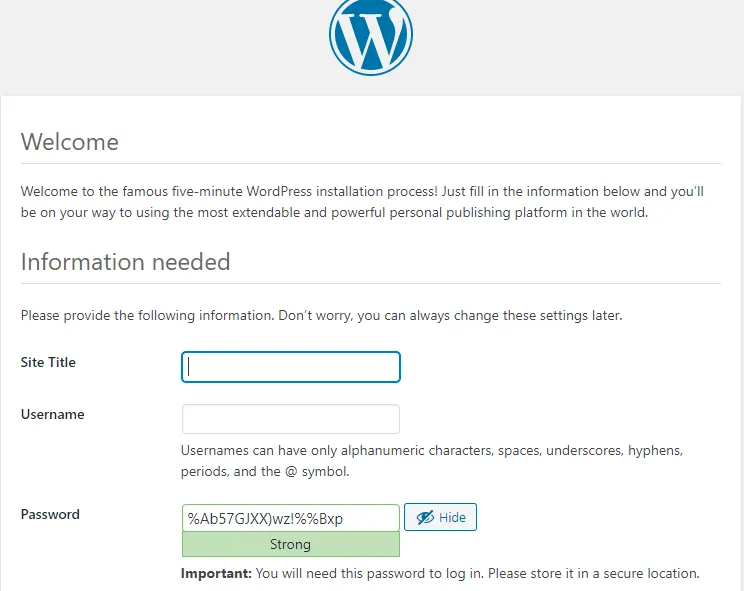
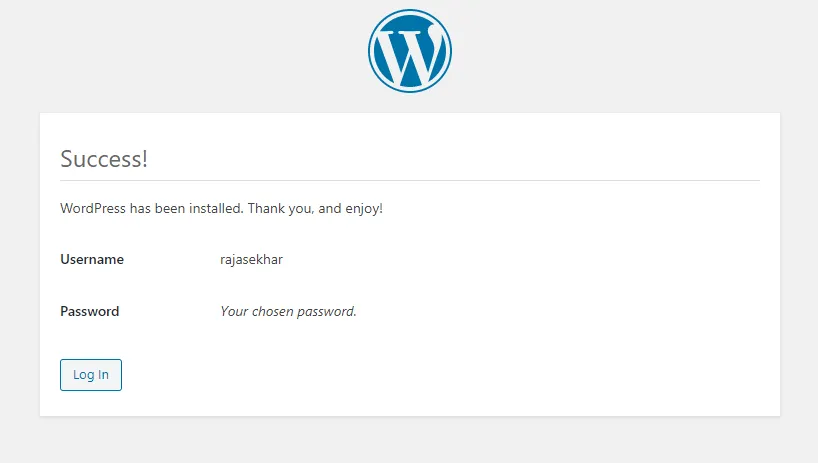
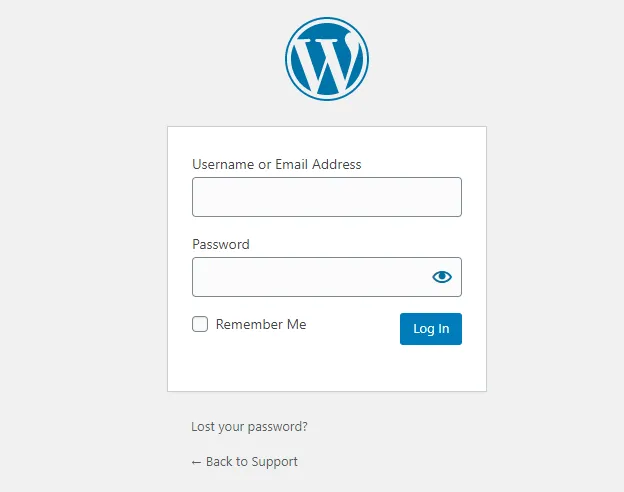
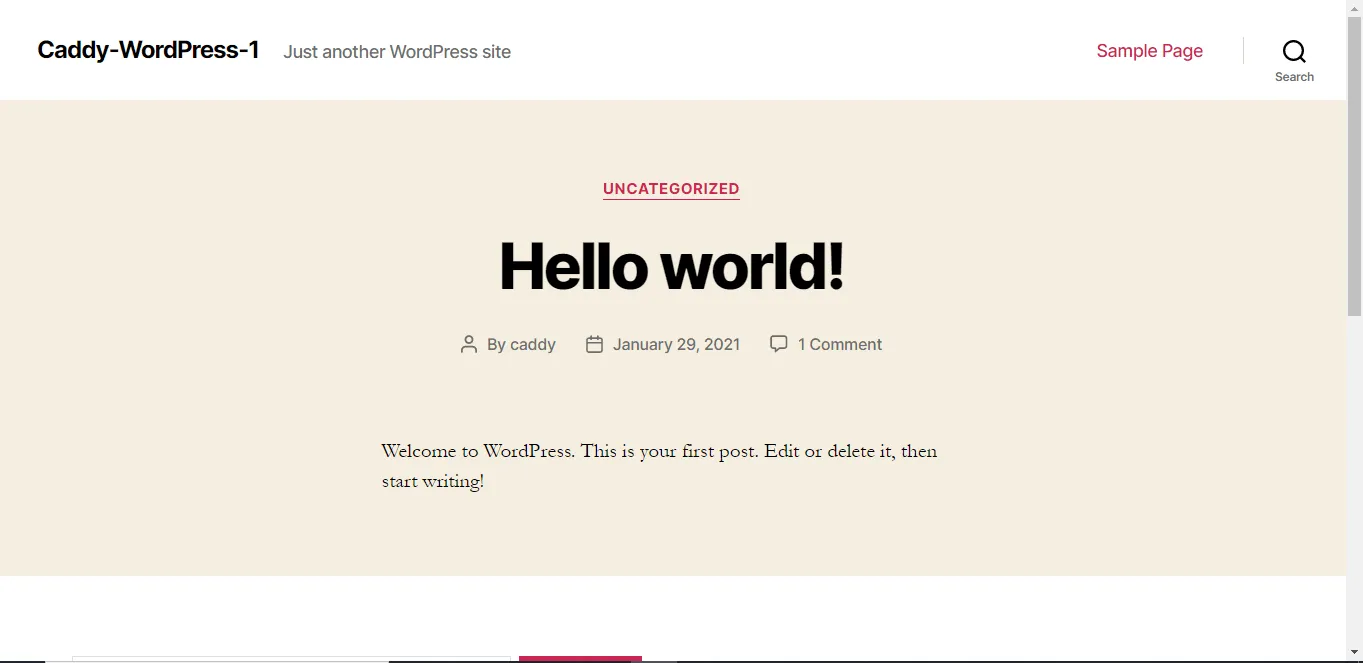
The deployment of a highly available WordPress instance behind Caddy in our Docker Swarm cluster is complete! Using the PHP-FPM image ensures that our CMS is optimized for heavy loads.
Stay tuned for more application deployments in our Docker Swarm Cluster! Let me know your feedback or thoughts by commenting below.

Continue reading

How to Deploy Highly Available WordPress in Docker Swarm Behind Traefik v2.0
WordPress is a powerful Content Management System (CMS) based on PHP and MySQL. Learn how to deploy a highly available instance in a Docker Swarm cluster using Traefik.

How to Deploy Authelia Using Docker Compose Behind Caddy
Authelia is an open-source authentication and authorization server providing two-factor authentication and single sign-on (SSO) for applications via a web portal.

How to Self-Host Stalwart Mail Server Using Docker Compose Behind Caddy v2.8.4
Stalwart is an open-source mail server solution with JMAP, IMAP4, POP3 & SMTP support. It is written in Rust and aims to be secure, fast, robust, and scalable.